A visual journal
Bring a weekend, a trip or the details of an ordinary day onto one page.
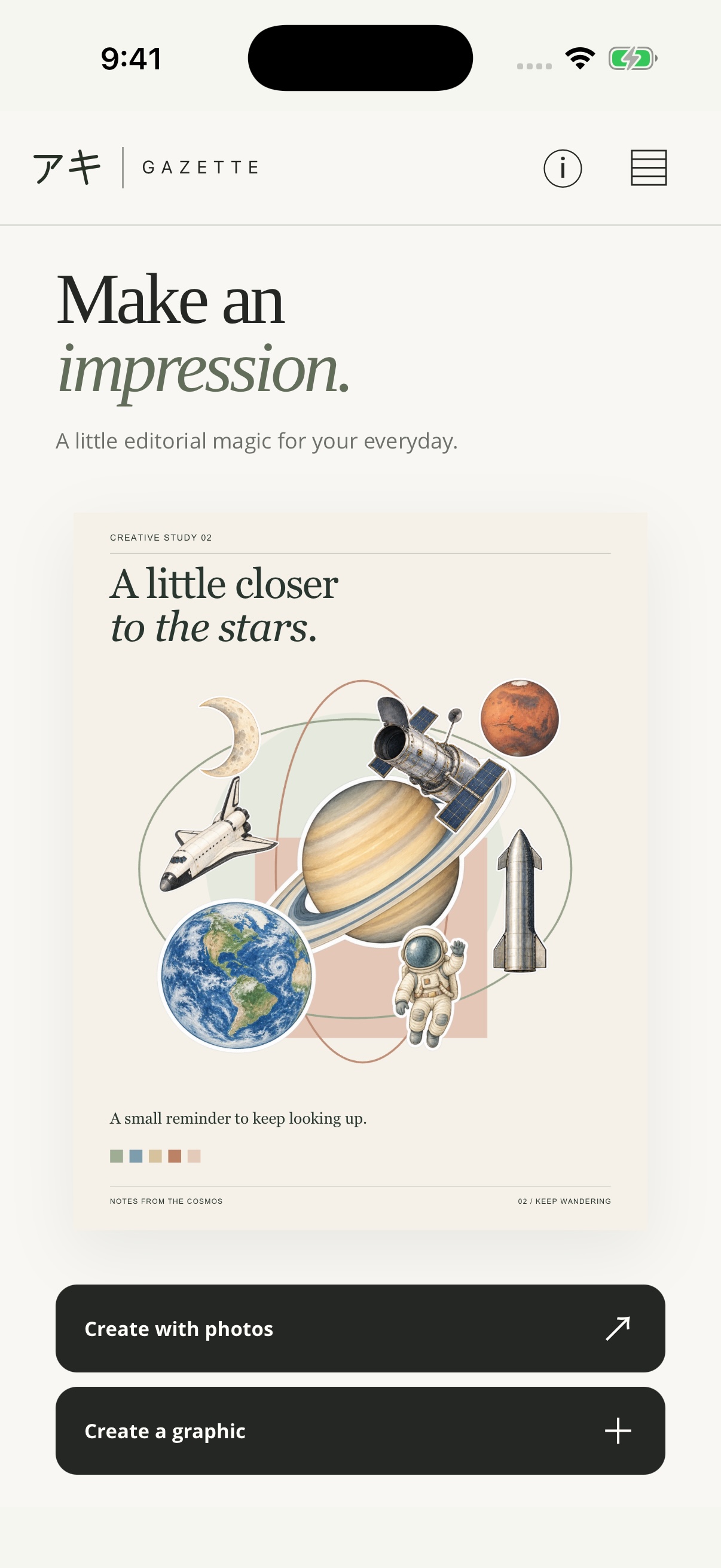
A little editorial magic for your everyday.
Create photo stories and original graphics. Bring your photographs, words and a little watercolor character onto a page of your own.
Free for iPhone and iPad · No account required
As of 11 November 2026, version 1.2.3 is available. Version 1.3.0, including Collage, is forthcoming and subject to App Store approval. Check the App Store for the latest available version.
308watercolor stickersacross 14 themes
19illustrated subjectsto make your own
7Design formatsfrom posts to prints
1–9photos per pagespace for your story
A day worth remembering. A collection taking shape. An announcement ready to share. Gazette brings photographs, type and original graphics together.
Bring a weekend, a trip or the details of an ordinary day onto one page.
Arrange objects, work in progress or a set of photographs with a shared mood.
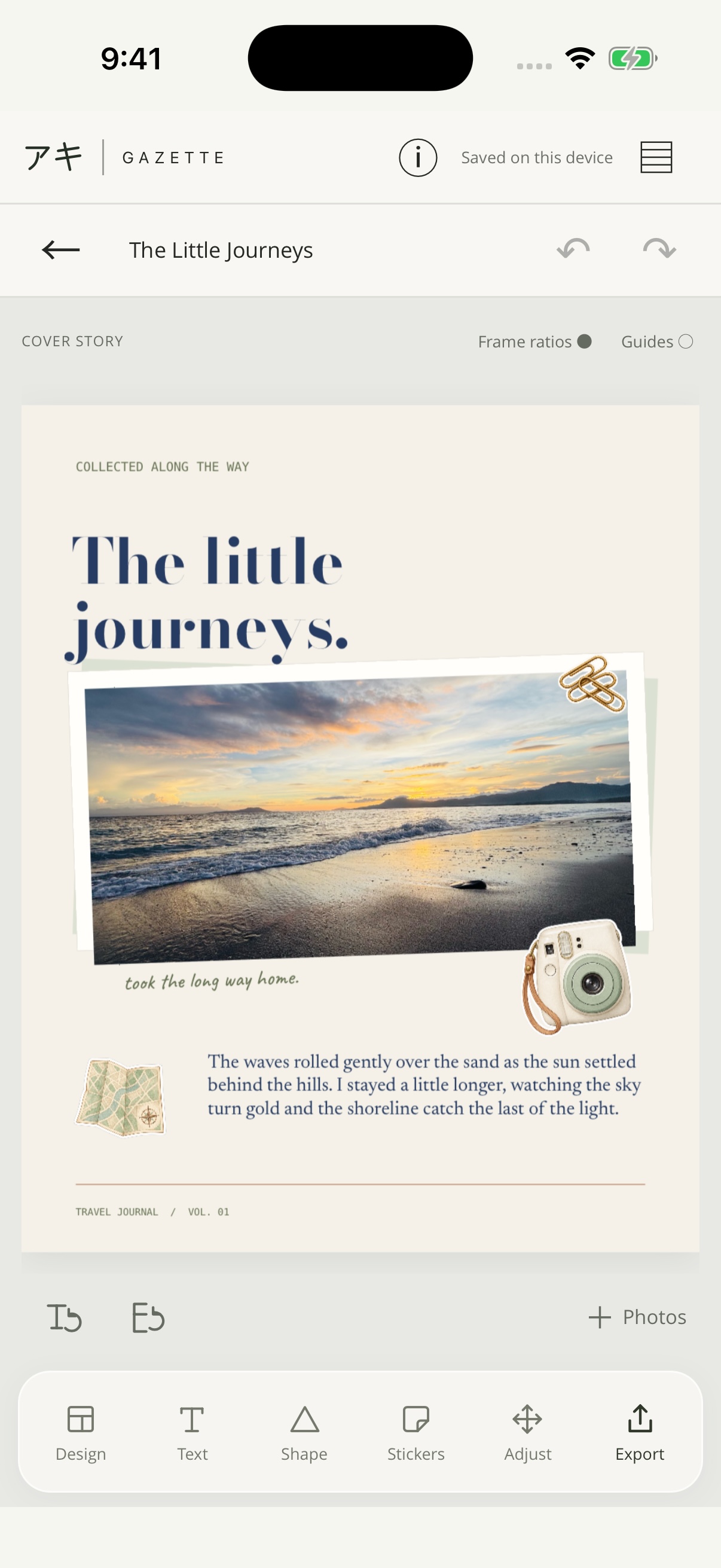
Give an image context with a headline, a caption or a longer personal note.
Pair your photographs and words for a launch, an invitation or a simple update.
A photo story, portfolio, reflection, announcement or promotion. Choose what you want to make and explore designs that give it a place.
In iOS version 1.3.0, Collage brings two to nine photos into a contact sheet, an editorial spread or overlapping scrapbook frames. Switch layouts to try a different arrangement while keeping each crop.
Bring photographs into editorial pages, bold covers and framed compositions.
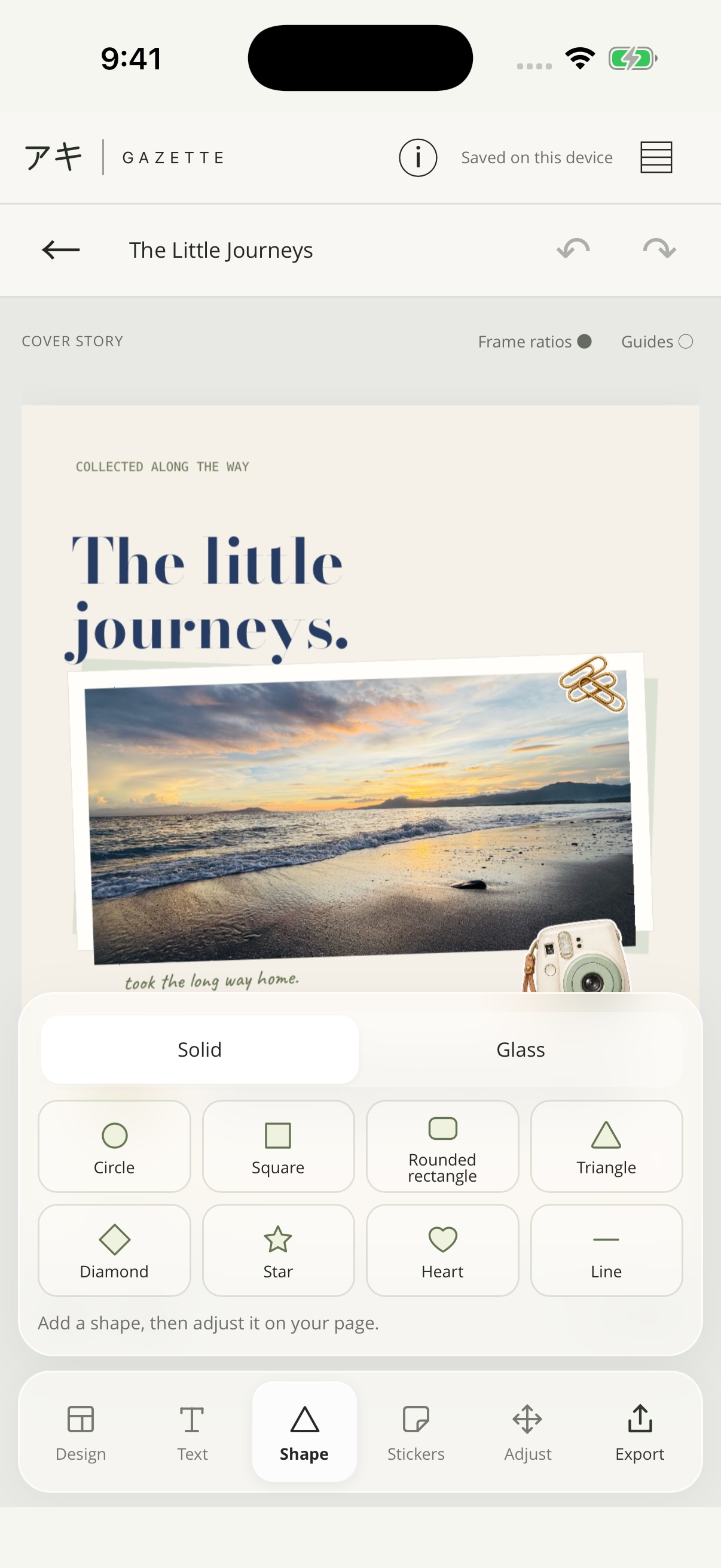
Combine type, shapes and illustrated scenes without importing a photograph.
Adjust frames, lettering, shapes and layers. Every design is a starting point.
A quiet landscape, a little world in pixels, a page led by type. Explore 19 illustrated subjects across nature, Japanese-inspired scenes and pixel artwork, alongside abstract and editorial graphic designs.
Start with Create a graphic and make the editable type and shapes your own.
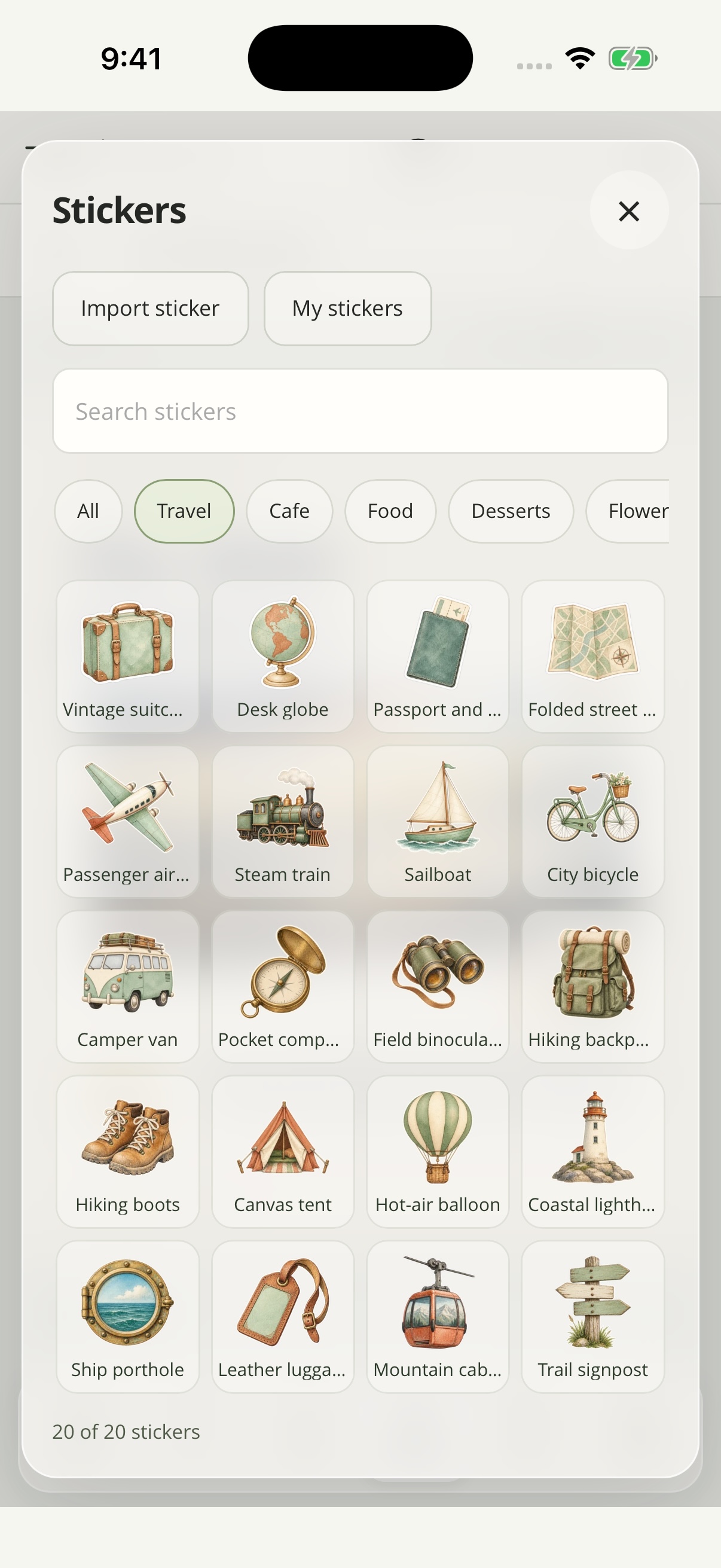
From morning coffee to a sky full of stars, find a watercolor detail that feels like your story.
308watercolor stickers
14themes to explore
Go from a quiet serif to a bold headline. Pair Bodoni Moda, Cormorant Garamond or Newsreader with expressive faces such as Fraunces, Barlow Condensed and Syne. Caveat, Kalam and Patrick Hand bring a handwritten touch.
Follow a design’s suggested pairing or choose your own. All fonts are included in the app.
Find the crop in Preview. Shape the composition in Adjust, with compact tools for frames, text, shapes and colour that keep your page in view.
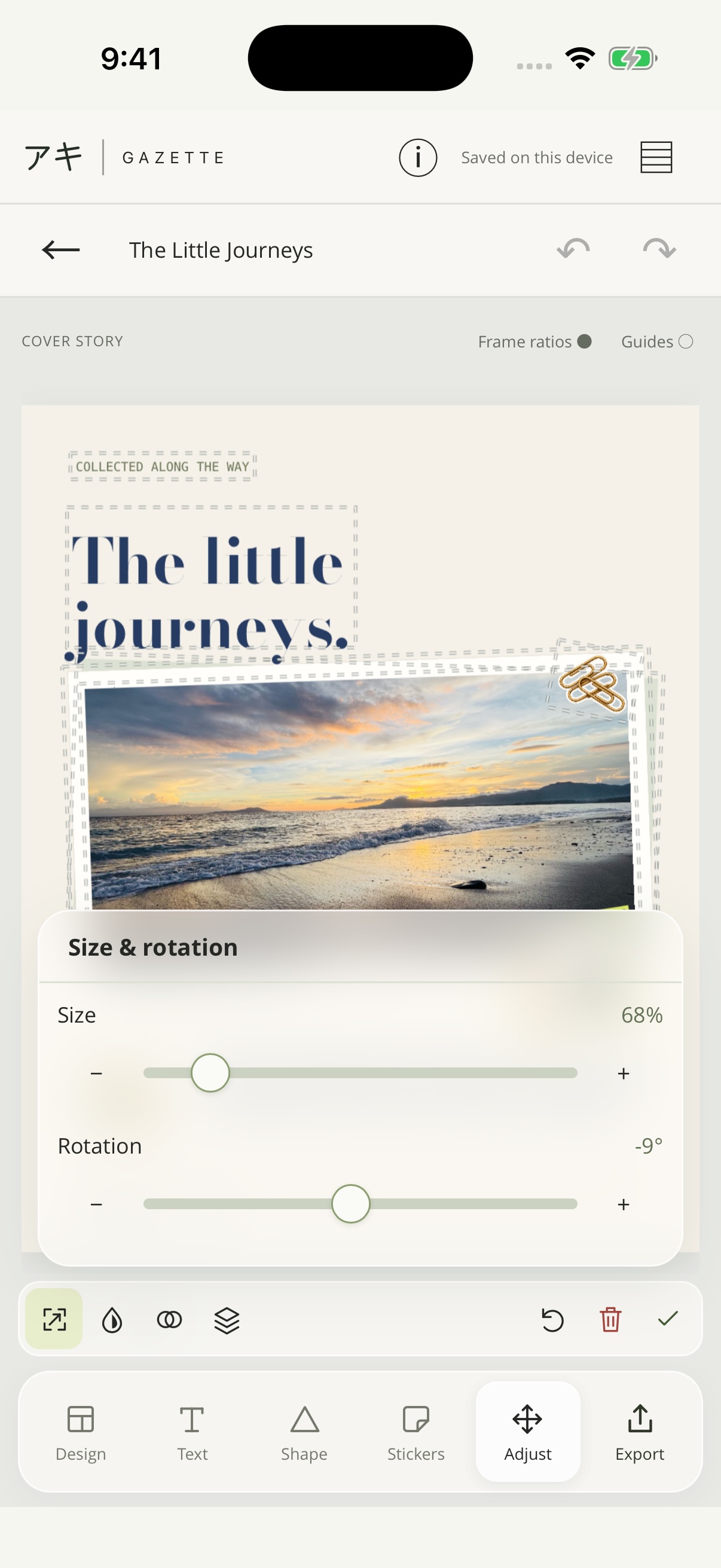
Move, scale and rotate items without covering them with your fingers. Alignment guides and angle snapping help the details settle into place.
Choose fixed or freeform photo frames. Add Solid or Glass shapes with tint and blur, and explore sixteen blend modes.
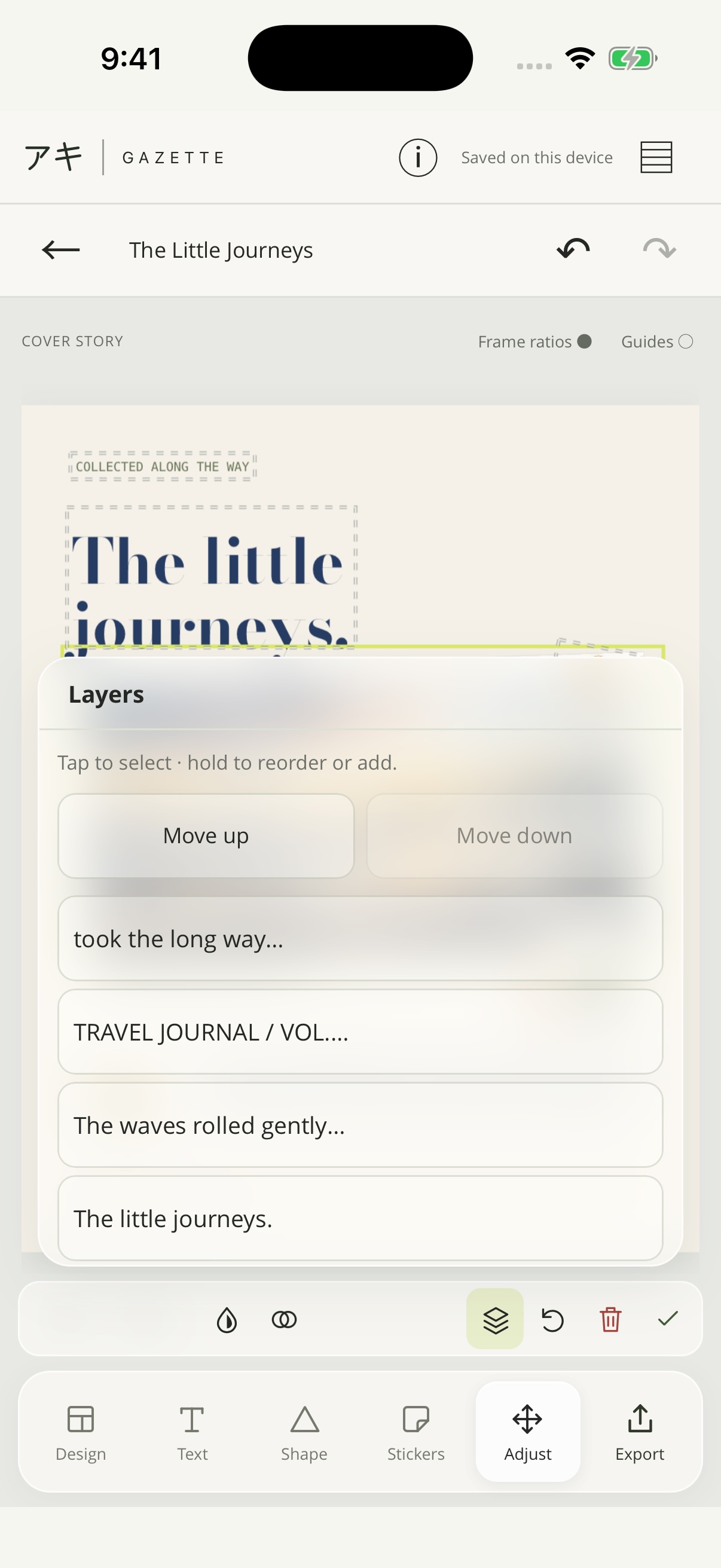
Duplicate an item, change its order and refine its font, colour or opacity. Compact panels let you return to the whole composition with a tap.
Explore the editing guide for gestures, cropping, shapes and layers.
For a Design, make a portrait post, a square collection, a tall story, a landscape composition or a print in A4 or 4R. Change the format while working to explore a different balance of pictures and space. Collage offers 25 formats.
No Gazette account to create. Start with photographs or a graphic and take the composition as far as you like.
Import one to nine photographs or create a graphic. Your original photographs stay unchanged.
Choose your purpose, format and design, then explore type and colour. Refine image crops in Preview and selected item positions in Adjust.
Preview your export, choose PNG or JPEG and a resolution, then save to Photos, Files or the system share sheet.
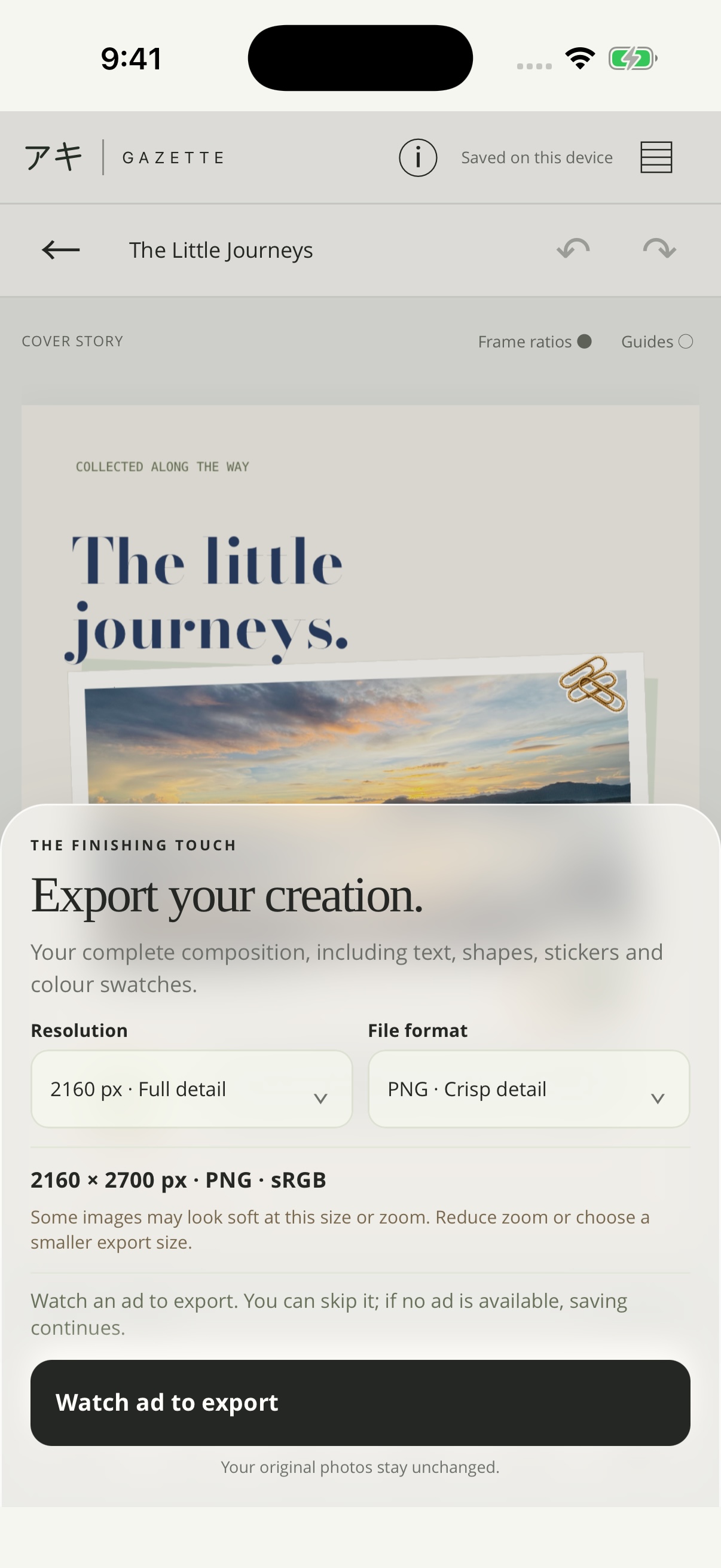
Save a finished PNG or JPEG to Photos, Files or the system share sheet. Your original photographs stay unchanged.
Screen formats export at 1080, 1440 or 2160 pixels wide. Gazette shows the full dimensions before saving. A4 exports at 2480 × 3508 and 4R at 1200 × 1800, both with 300 dpi metadata.
Read the editing guide for export options and dimensions.
Keep editable projects on your device and return to their photographs, text and layout later. Export a finished image when you are ready to share it.
PNG and JPEG flatten the composition into an image. Keep the local project if you want to change individual elements again.
Gazette does not require an account or upload your project photographs and text to an Aki server. The editor, layouts and fonts are bundled in the app.
Local projects are not a cloud backup. Deleting the app or clearing its data can remove them, so save finished images somewhere you want to keep them.
Saving to Photos asks permission to add the finished image. Choose Files to pick a folder, or Share to send a copy to another app.
Gazette combines photographs, text, shapes and colour into a single composition. Create photo stories and portfolios, or make graphics for reflections, announcements and promotions. Start with a design, then make it your own.
Gazette is available on the App Store for iPhone with iOS 16 or later and iPad with iPadOS 16 or later. Visit support for help.
A public Google Play download is not available yet. Gazette is available for iPhone and iPad on the App Store.
In Adjust, tap the item to select it. Drag from another part of the preview to move it, or pinch and twist there with two fingers to resize and rotate. Tap the selected item again to deselect it, or tap another item to switch. The Adjust guide walks through the controls.
Yes. Version 1.3.0 can show a banner on Home as well as an ad at export. See the privacy policy for advertising data and choices.
A composition supports one to nine photographs. Layouts adapt to the number you choose. The optional Symmetry setting is available for even counts of two, four, six or eight photographs.
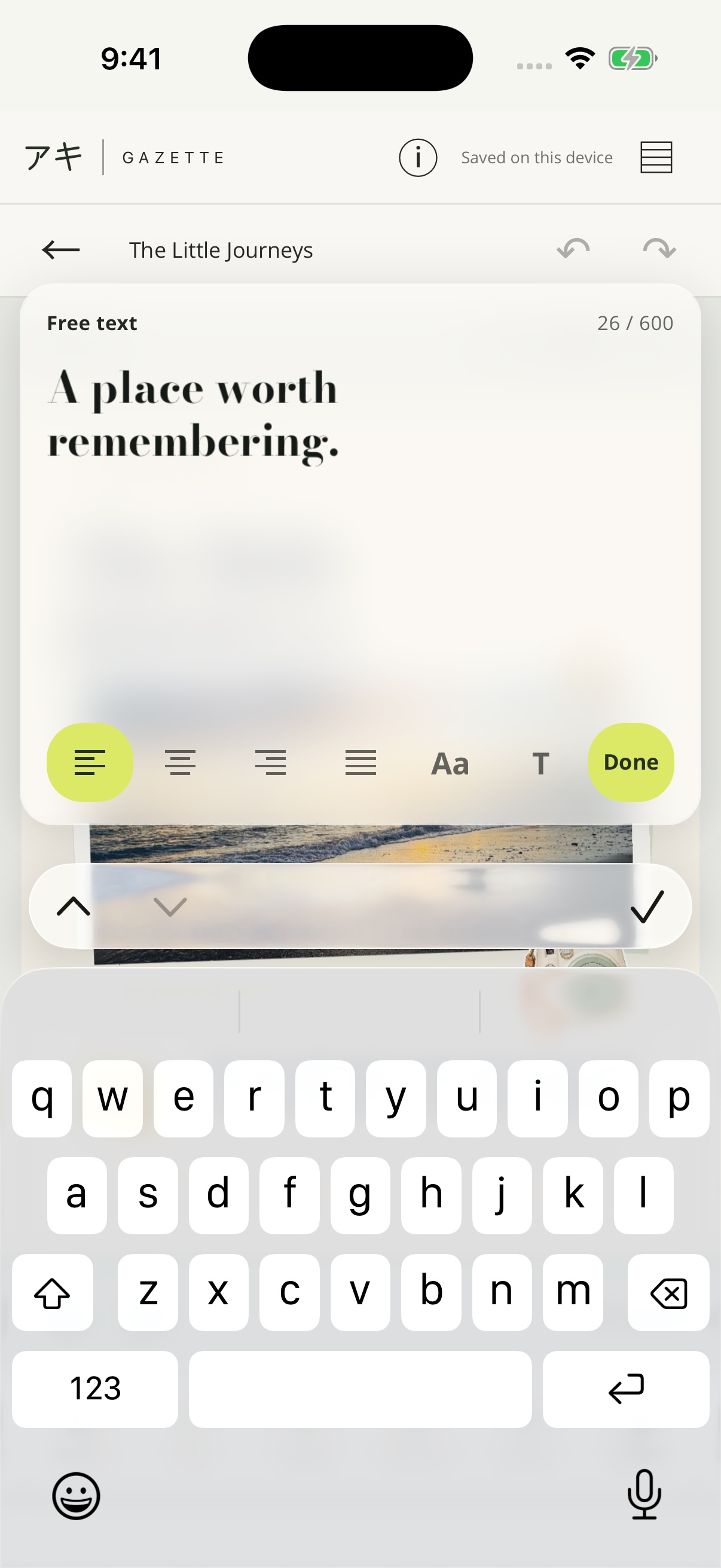
A larger text editor opens above the usual keyboard, and the main preview keeps its size. Left, centre, right and justify remain visible while you type. Choose Done to keep your edit. In version 1.3.0, tapping outside the text editor discards the draft.
Yes. Headline, supporting copy, label and caption fields are joined by up to eight extra text blocks. Choose a kicker, byline, quote, body passage or custom note, then adjust its alignment, position and rotation.
No account is required. The editor, templates and fonts are included in the app, and projects are stored locally. You can edit and save projects offline.
No. Cropping, positioning and composition changes happen inside Gazette’s project. Export creates a separate finished image. Saving to Photos requires permission to add that exported image; choosing Files or Share uses the system destination you select.
A PNG or JPEG is a flattened image, so it does not keep separate editable frames and text. Reopen the saved project in Gazette to continue editing. Projects remain on that device and are not synced through an Aki account.
Visit Gazette support or email akistudio.mobile@gmail.com. Include your device and what you were trying to do. Send only photographs or screenshots you are comfortable sharing.
Get Aki Gazette
For iPhone and iPad with iOS or iPadOS 16 or later.