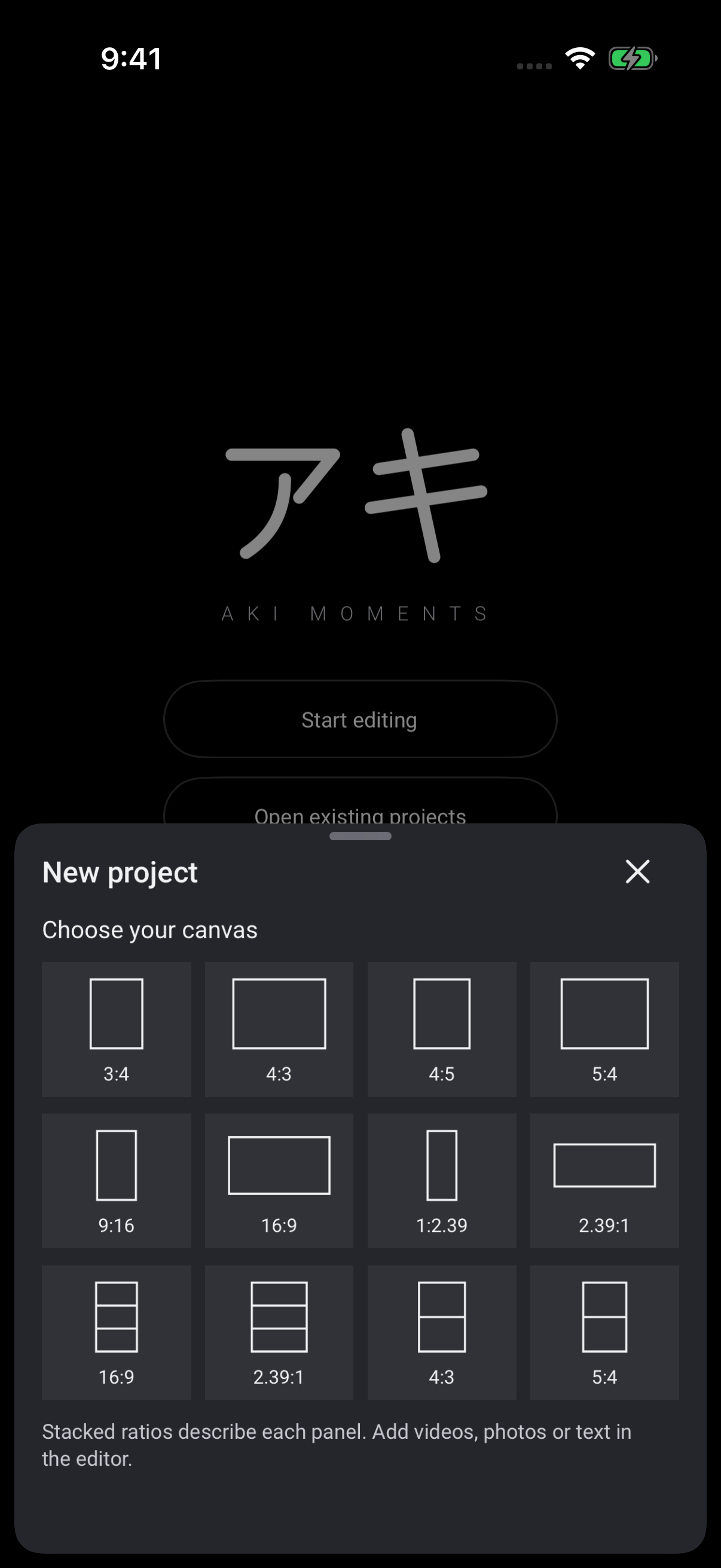
Choose your canvas.
Start with a frame that fits your story. Choose a familiar aspect ratio or a stacked format for multiple views.
Aki Moments / Video editor
A quieter space for your clips, your words and the little details that make a story yours.
TestFlight beta · iPhone & iPad
Join the TestFlight beta for iPhone and iPad. Some features shown are from version 1.1.
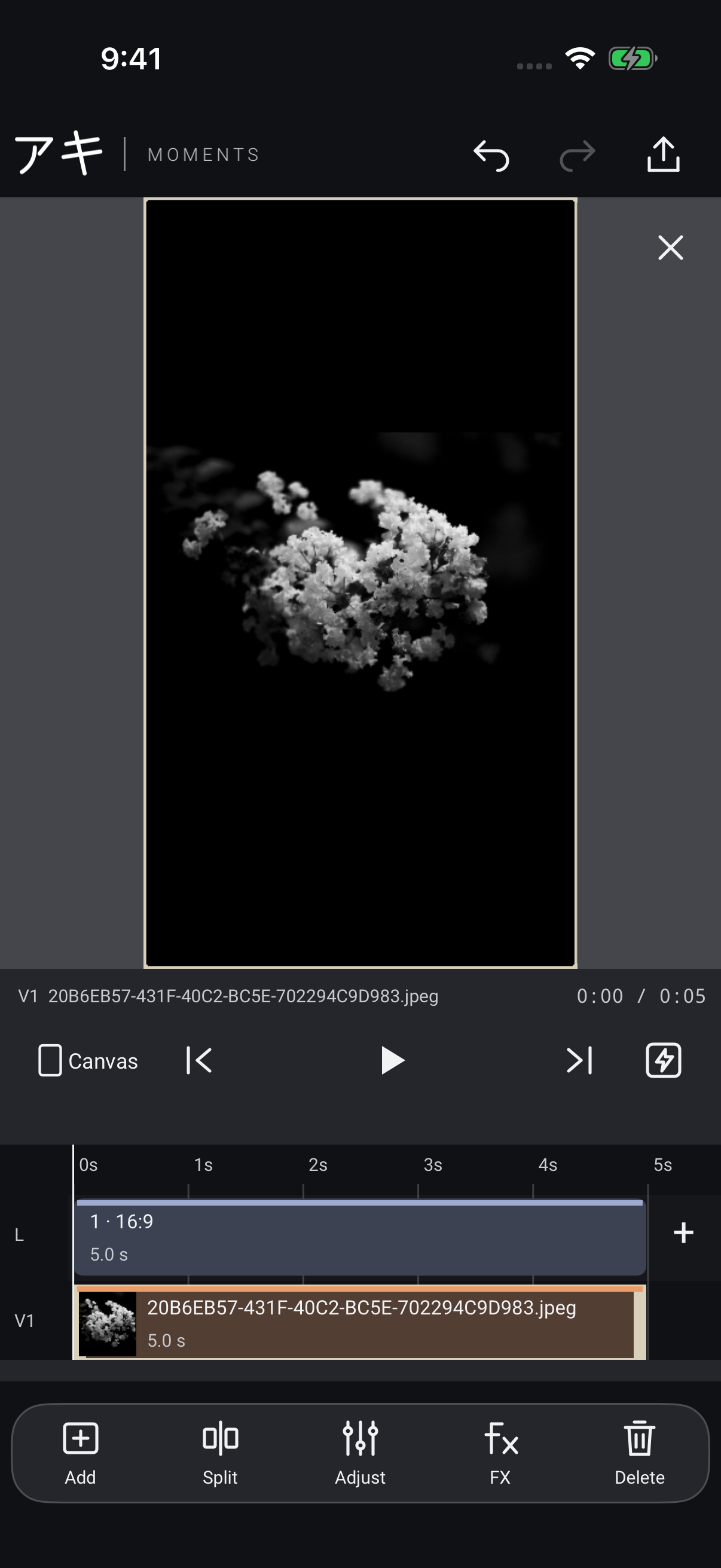
01 / Start with a story
From choosing a canvas to arranging your final cut, Moments brings your video, photos, words and sound together in one place.
Start with a frame that fits your story. Choose a familiar aspect ratio or a stacked format for multiple views.
Bring in clips and photos, split them on the timeline and move pieces into place.
Add text, animated chalk, audio and transitions. Explore Looks and Vibes, then choose the quality and frame rate for your export.
Start with the frame
Choose a canvas before you begin, with portrait, landscape and stacked options ready to go.
Shown: canvas selection in Moments for iPhone.
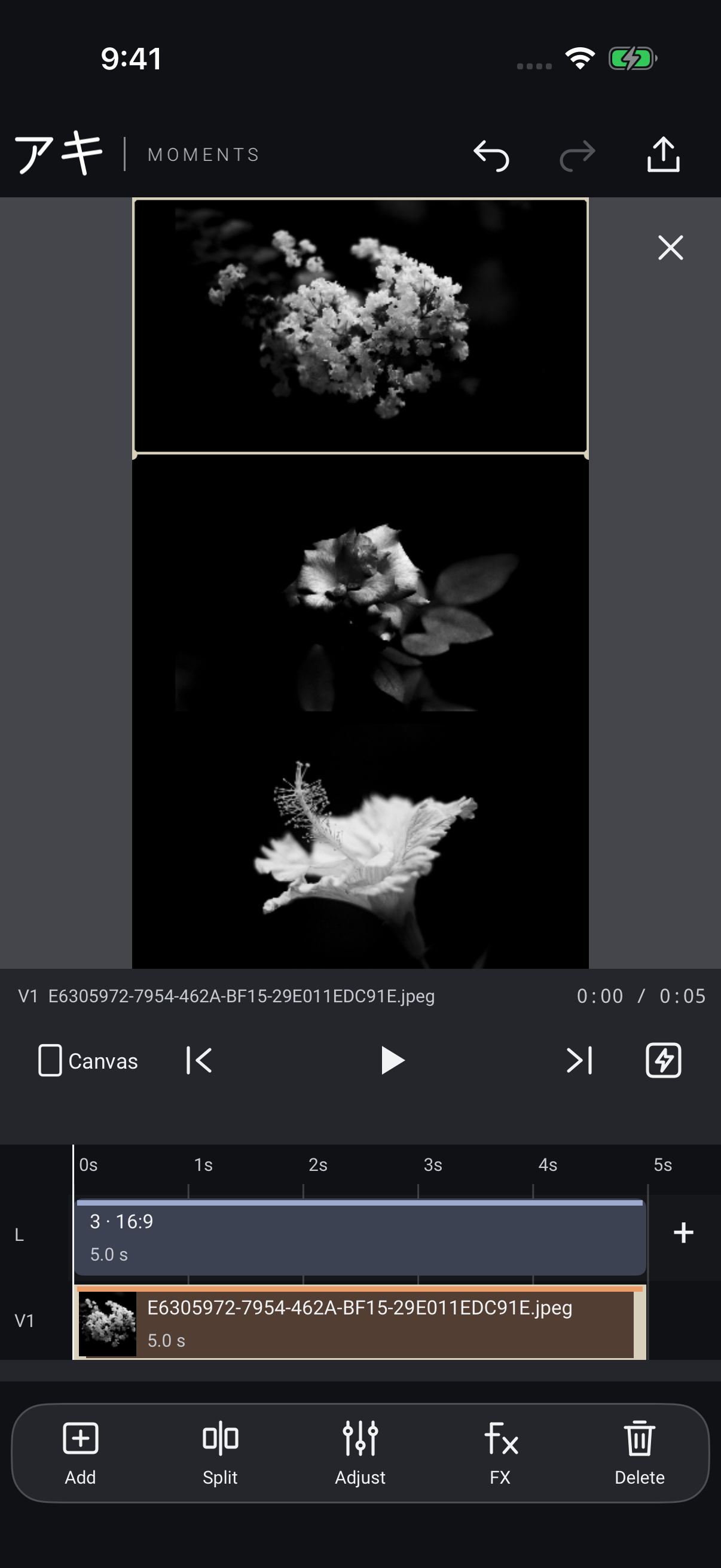
02 / Layouts & timeline
Let a single clip fill the frame, or bring perspectives together in a stacked layout. Arrange your media on the timeline and change the composition as your story moves.
Between the moments / Transitions
Connect clips with a soft fade or a more expressive transition. Explore movement, light, texture and animated chalk to find the right pace for your story.
03 / Text, chalk & sound
Make space for a thought, add animated chalk artwork, find the right sound, and give each moment its own rhythm.
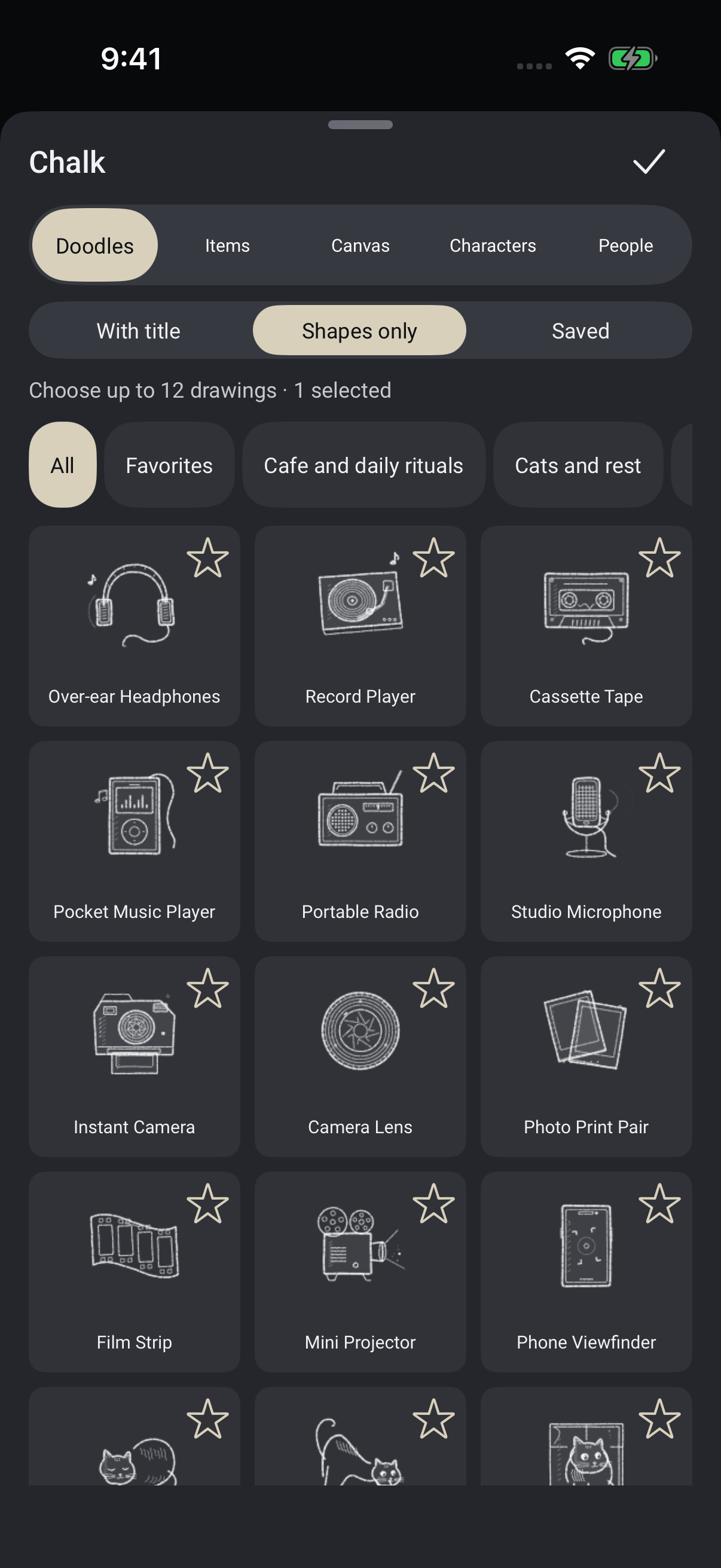
Words & chalk
Add text or subtitles, explore handwriting animation and choose animated chalk artwork for your canvas.
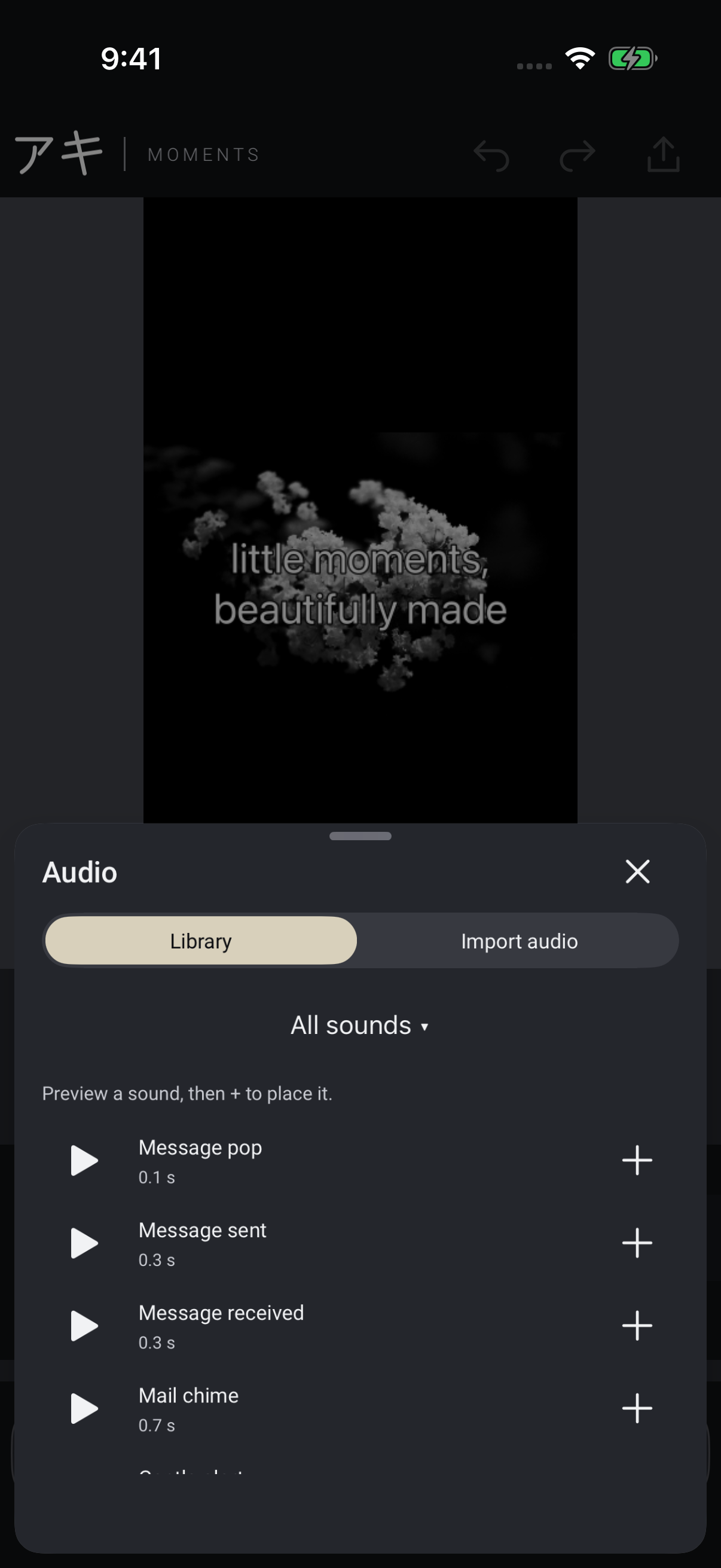
Sound & music
Bring in audio or explore the sound library. Place sound where it belongs alongside your other timeline elements.
04 / Looks & Vibes
Explore Aki Looks and vintage-inspired Vibes for your clips, or bring your own imported Look or LUT into the mix.



Original artwork from the Looks collection included in Moments.
05 / Your final cut
Bring your story together, choose the export quality and frame rate, and save or share your finished video.
Choose an export frame rate to suit the feel of your story.
Pick an output quality before creating the finished video.
Save or share your creation from your device.
Screens show Moments 1.1 for iPhone.
Aki Moments / TestFlight beta
Try Aki Moments on iPhone and iPad through TestFlight. Some features shown are from version 1.1.